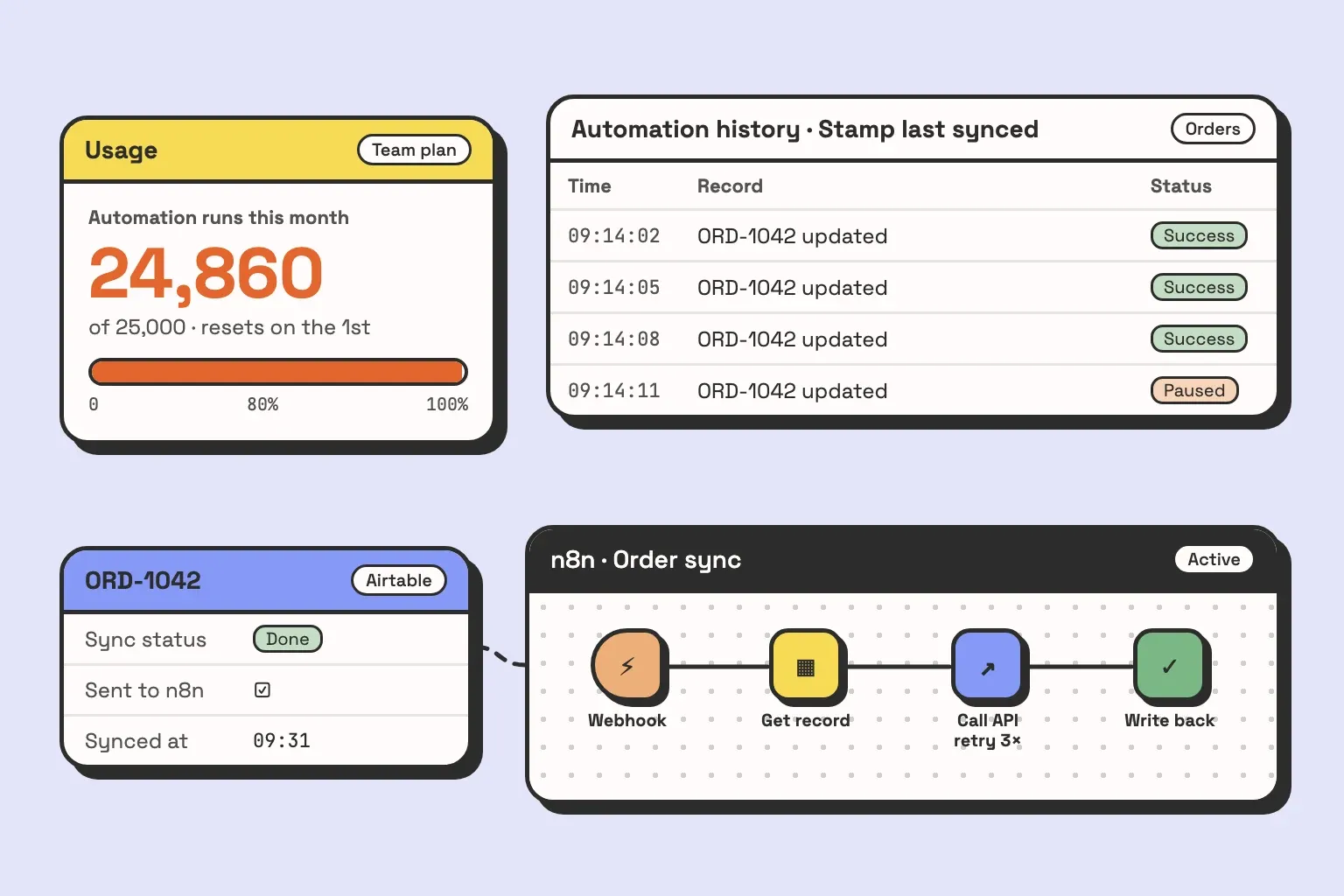
Someone adds an automation on a Friday: when a record in Orders is updated, stamp the time into a Last synced field. The update is itself an edit to the record, so it fires the trigger again, and again. By Monday the workspace has spent its month of automation runs, and the invoice emails, the Slack alerts and the client onboarding steps have all stopped with it. Airtable emailed the workspace owner at 80%, 90% and 100% over the weekend. For everyone else, the first signal is a client asking why they never got their invoice.
That is the limit that hurts most, and it is rarely the one people look up. Airtable automation limits come in three kinds: how many runs a workspace gets per month, how many automations a base can hold, and how long and how much a single script can run. In the bases we get called into, they break in that order. Below is each limit, how to confirm it is the one biting, and the fix we ship.
Airtable automation limits in one table
These are the plan numbers from Airtable’s own help article, Getting started with Airtable automations, checked on 13 October 2026. Airtable changes them, so treat that page as the source and this table as a snapshot.
| Plan | Automation runs per month (per workspace) | Automations per base | Run history kept |
|---|---|---|---|
| Free | 100 | 75 | 2 weeks |
| Team | 25,000 | 100 | 6 months |
| Business | 100,000 | 150 | 1 year |
| Enterprise Scale | 500,000 | 200 | 3 years |
How those numbers are counted:
- A run is counted every time a trigger fires, whether the actions succeed or fail.
- The run allowance belongs to the workspace, so every base and every automation in it draws from the same pool.
- The counter resets on the first day of each calendar month, not on your billing date. Paying an invoice mid-month does not reset it.
- The per-base cap counts automations that are turned off. Turning one off does not free a slot; deleting it does.
- Workspace owners get an email at 80%, 90% and 100% of the monthly runs. Make sure the owner is someone who reads email.
The one that hurts most: runaway trigger loops
A loop happens when an action writes to something the trigger is watching. Airtable’s help center describes it plainly: each run sets up the next one, and the automation keeps going until it has used up the workspace’s runs. The usual shapes:
- When record updated, watching every field, with an action that updates the same record. The Last synced example above.
- When record matches conditions, where an action changes a field in the conditions so the record drops out, and something else (a person, another automation, a formula) puts it back. A record that drops out and comes back in fires the trigger again.
- Two automations feeding each other. Automation A writes Status, automation B watches Status and writes Priority, and A watches Priority. Neither one loops on its own.
Airtable will sometimes stop the worst of these for you. An automation producing an abnormal volume of runs can show as “Paused by Airtable”, and it stays off until someone turns it back on. By then it has already spent runs.
The guard field
The fix we put on every automation that updates its own triggering record is a guard field: a checkbox the automation sets as its last step, and that the trigger requires to be empty.
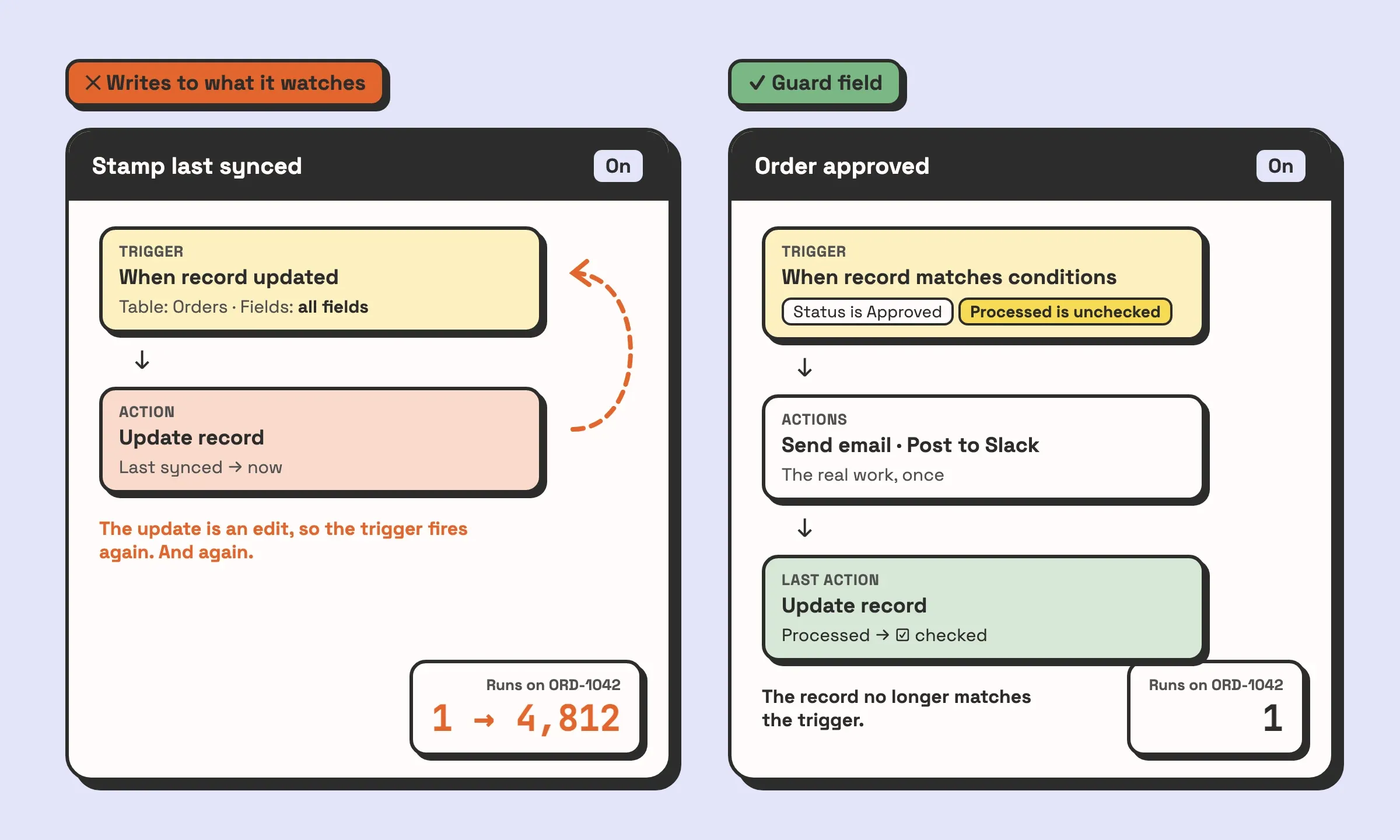
In practice, for an order approval flow:
- Add a checkbox field to the table, for example Processed by automation.
- Use the trigger When a record matches conditions: Status is Approved and Processed by automation is unchecked.
- Put the real actions in the middle: the email, the Slack message, the date stamp.
- Make the last action Update record on the triggering record, setting Processed by automation to checked.
Once the box is ticked, the record cannot match the trigger again, no matter how many times other fields change or Status bounces out and back. If someone needs the automation to run again on purpose, they untick the box, which also leaves a visible trace of who did it.
Two rules go with it. If the trigger is When record updated, limit the watched fields to the ones a person edits and never to a field any automation writes. And keep a short list, in the automation descriptions or a doc, of which automation writes which field. That list is how you find the A-to-B-to-A loops, and it takes ten minutes to write while the base is small.
If you would rather have someone else map the writes in a base that already has a few dozen automations, that is the first thing we do in an Airtable audit.
The per-base cap: one trigger, conditional groups
Most bases we see at the cap grew one automation per request. Someone asks for an email when a request is approved, then a Slack message when it is approved, then a date stamp when it is approved, and each arrives as its own automation with its own copy of the same trigger.
That costs twice. Each one takes a slot, and each one is a separate trigger, so one status change spends three runs instead of one.
The fix is one automation per event, with the branches inside it. Airtable’s conditional groups let a single automation run different actions depending on the record.
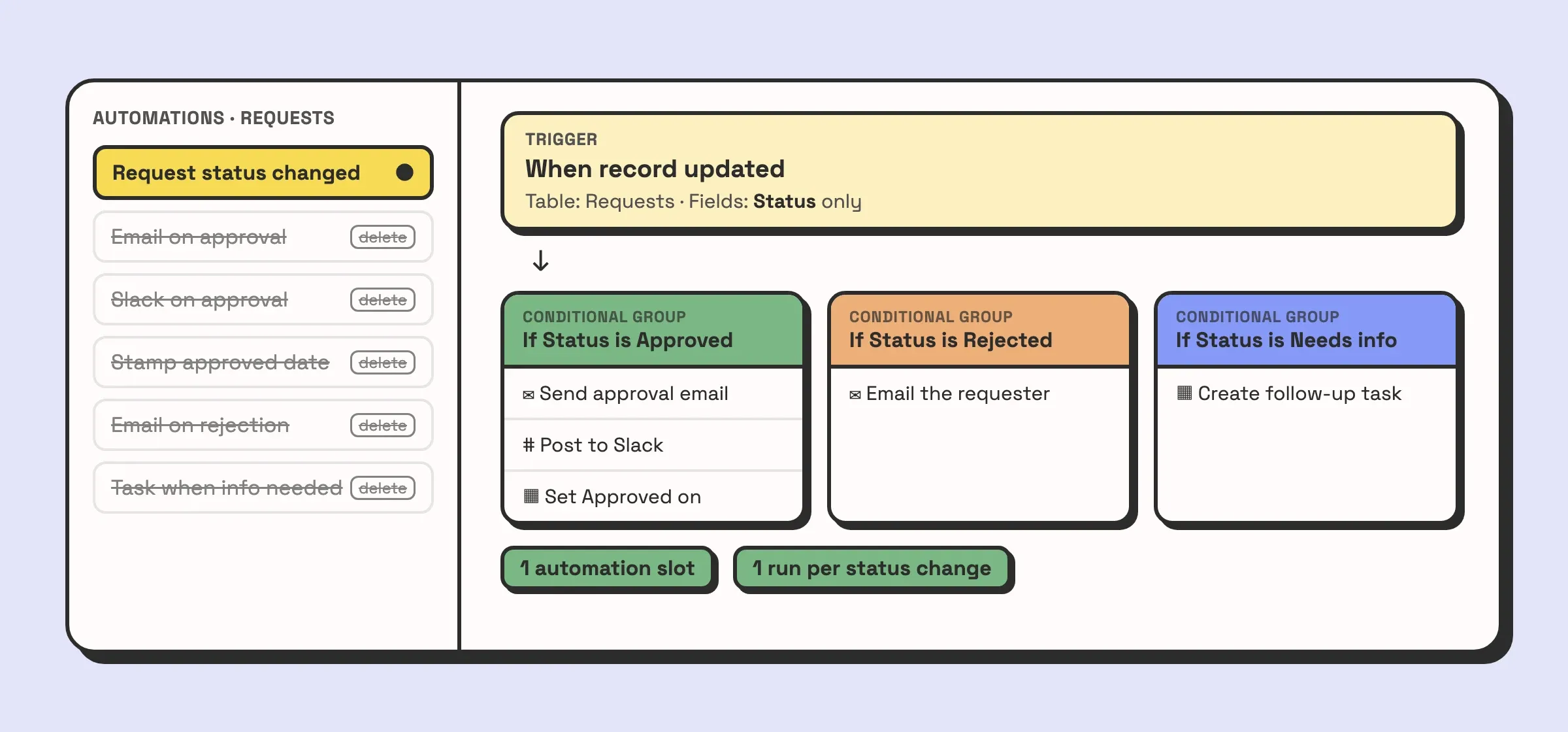
How we consolidate an existing base:
- List every automation with its trigger table and trigger field. Group the ones that fire on the same event, usually a change to one field on one table.
- Build one automation per group. Trigger on the shared field (When record updated, watching only Status, in the example above), then add one conditional group per outcome.
- Copy each old automation’s actions into the matching group. Add the guard field from the previous section if any action writes to the triggering record.
- Turn the new automation on, turn the old ones off, and watch Automation history for a few days.
- Delete the old ones. Turned off, they still count against the cap.
Delete with a note. Before removing an old automation, copy its description and action list somewhere the team can find, so the reason it existed outlives it.
The math on an orders base
Here is the arithmetic on a pattern we build often: Airtable orders that turn into QuickBooks invoices or purchase orders. Assume a base that closes 40 orders a working day, about 880 a month over 22 working days, and an order that moves through three statuses after it is created: Approved, Shipped and Closed. Built one automation per request, it ends up with seven automations, each with its own When a record matches conditions trigger on Status:
- Approved: email the customer, post to Slack, stamp Approved on, and send the record ID to n8n, which creates the invoice or purchase order in QuickBooks. That is four automations.
- Shipped: email the tracking number and stamp Shipped on. Two more.
- Closed: notify the account manager. One.
Every order fires all seven, so the base spends 880 × 7 = 6,160 runs a month. Consolidated, it is one automation: When record updated, watching Status, with three conditional groups. Each status change is one run, so 880 × 3 = 2,640 runs a month. That is seven slots down to one, and on the Team plan’s 25,000 runs, from about 25% of the workspace’s monthly allowance to about 11%, for the same emails, date stamps and QuickBooks documents.
The consolidated trigger spends a run on every change to Status, including changes that match no group. If people move orders back and forth, or the field has statuses with nothing attached, count those changes too before you trust the saving.
Script timeouts and memory: batch in chunks of 50
The third limit shows up on batch jobs, typically a Run a script action that loops over a few hundred records. Airtable’s page for the Run a script action lists the limits:
- A 30-second timeout. Airtable says it has temporarily raised this to 120 seconds while it tests a permanent increase, so check the page before you design around either number.
- 512 MB of memory.
- 50
fetchrequests and 30selectRecordsqueries per run. - Up to 15 record mutations a second, with up to 50 records changed per mutation.
The most common cause of the timeout, according to Airtable’s own troubleshooting article, is calling updateRecordAsync once per record inside a loop. Each call is a round trip. Collect the changes first and write them in batches of 50:
const table = base.getTable('Orders');
const query = await table.selectRecordsAsync({ fields: ['Status', 'Invoiced'] });

const updates = query.records
  .filter(r => r.getCellValueAsString('Status') === 'Shipped' && !r.getCellValue('Invoiced'))
  .map(r => ({ id: r.id, fields: { 'Invoiced': true } }));

// One write per 50 records instead of one per record.
while (updates.length > 0) {
  await table.updateRecordsAsync(updates.splice(0, 50));
}
Ask only for the fields you need in selectRecordsAsync, as above. A query that loads every field of a large table spends time and memory on data the script never reads.
The fetch cap is the one batching does not fix. A script that calls an external API once per record hits the cap at record 51, however fast it is. That is usually the sign the job belongs somewhere else.
When to stop fighting it: moving the job to n8n
Some jobs do not fit inside Airtable automations however carefully you build them: calling an external API for hundreds of records, retrying when that API is down, or reacting to so many events a month that the runs alone push you up a plan. For those, we move the heavy part to n8n and keep Airtable as the source of truth. People keep working in the base, and the base still shows what happened to each record.
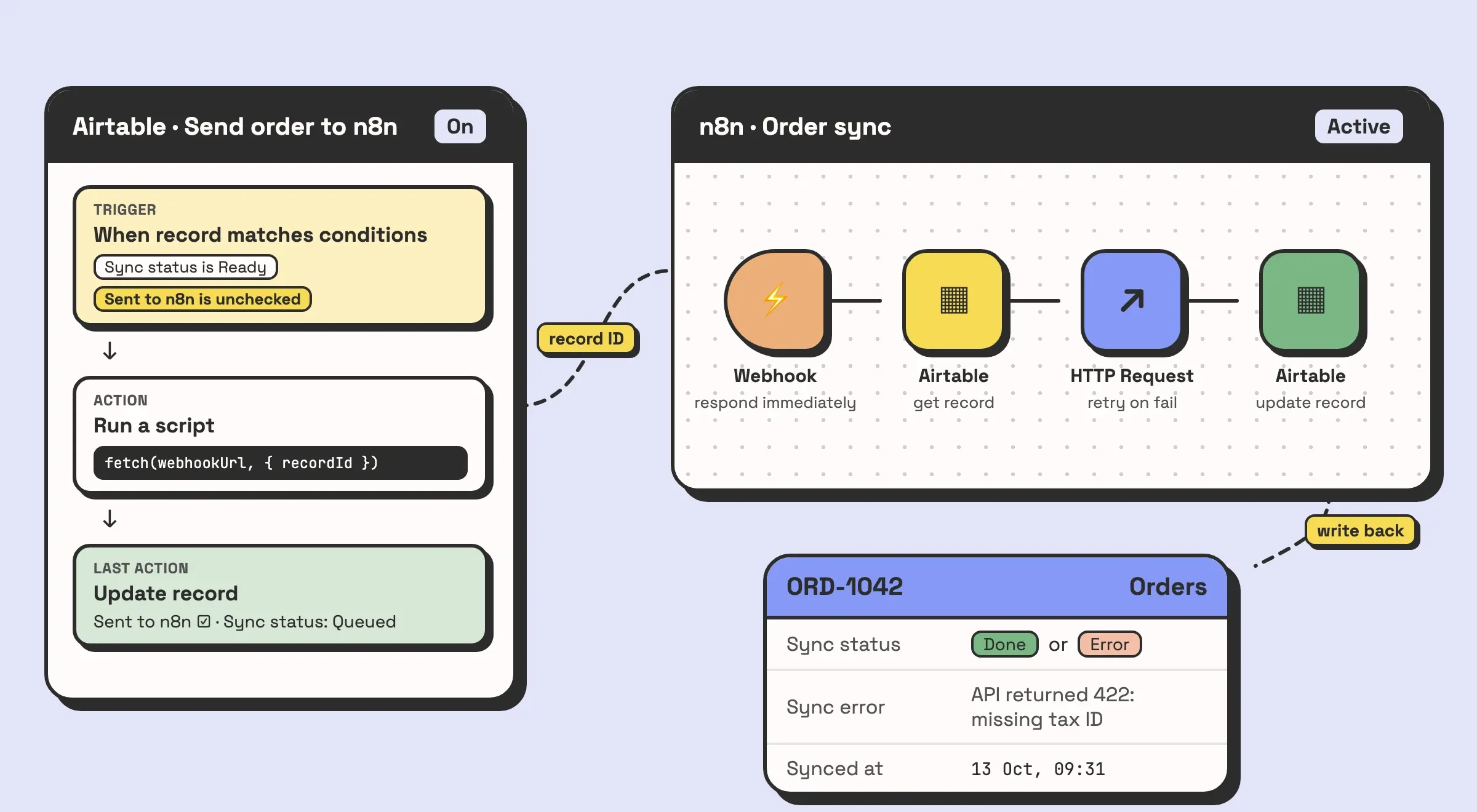
The pattern:
- In Airtable, one automation per job, with a guard field. The trigger is When a record matches conditions: Sync status is Ready and Sent to n8n is unchecked.
- A Run a script action posts the record ID to an n8n Webhook node with
fetch. Only the ID: n8n reads the current record itself, so it never works from a stale copy. - A final Update record action ticks Sent to n8n and sets Sync status to Queued.
- In n8n, the Webhook node responds immediately, so the Airtable script does not wait on the slow part. The workflow then reads the record, does the work with retries, and writes back Sync status (Done or Error), the error message and a timestamp.
// Airtable "Run a script" action. recordId comes from the trigger,
// added as an input variable in the script's settings.
const { recordId } = input.config();
const res = await fetch('https://your-n8n-host/webhook/order-sync', {
  method: 'POST',
  headers: { 'Content-Type': 'application/json' },
  body: JSON.stringify({ recordId }),
});
if (!res.ok) throw new Error(`n8n returned ${res.status}`);
The Airtable side now costs one run per record, however much work happens after it, and a failure lands on the record as Error with a reason instead of disappearing into a timed-out script.
Airtable’s API has limits of its own, and n8n meets them on the way back. Writes go through the API, which allows 5 requests per second per base and up to 10 records per request, so large write-backs need batching in n8n as well. The Free plan gets 1,000 API calls a month and Team 100,000; Business and Enterprise have no monthly cap. Going the other way, if n8n pushes data into Airtable, write through the API rather than calling an Airtable When webhook received trigger: every webhook that starts an automation counts as a run, and that trigger accepts five requests a second and 100 KB per request.
If your base uses a few thousand runs a month and is nowhere near its automation cap, none of this is worth building. A guard field and some consolidation will do. Moving a job to n8n adds a second system someone has to run and watch, which is a fair trade for a job that is failing and a bad one for a job that is not.
How to see what is eating your runs
Start with the total, then find the automation responsible.
- Open your Airtable account overview, select the workspace, and look under Usage. That is how much of the month is gone.
- In each base, open Automations, pick an automation, and open Automation history. You can search it by date.
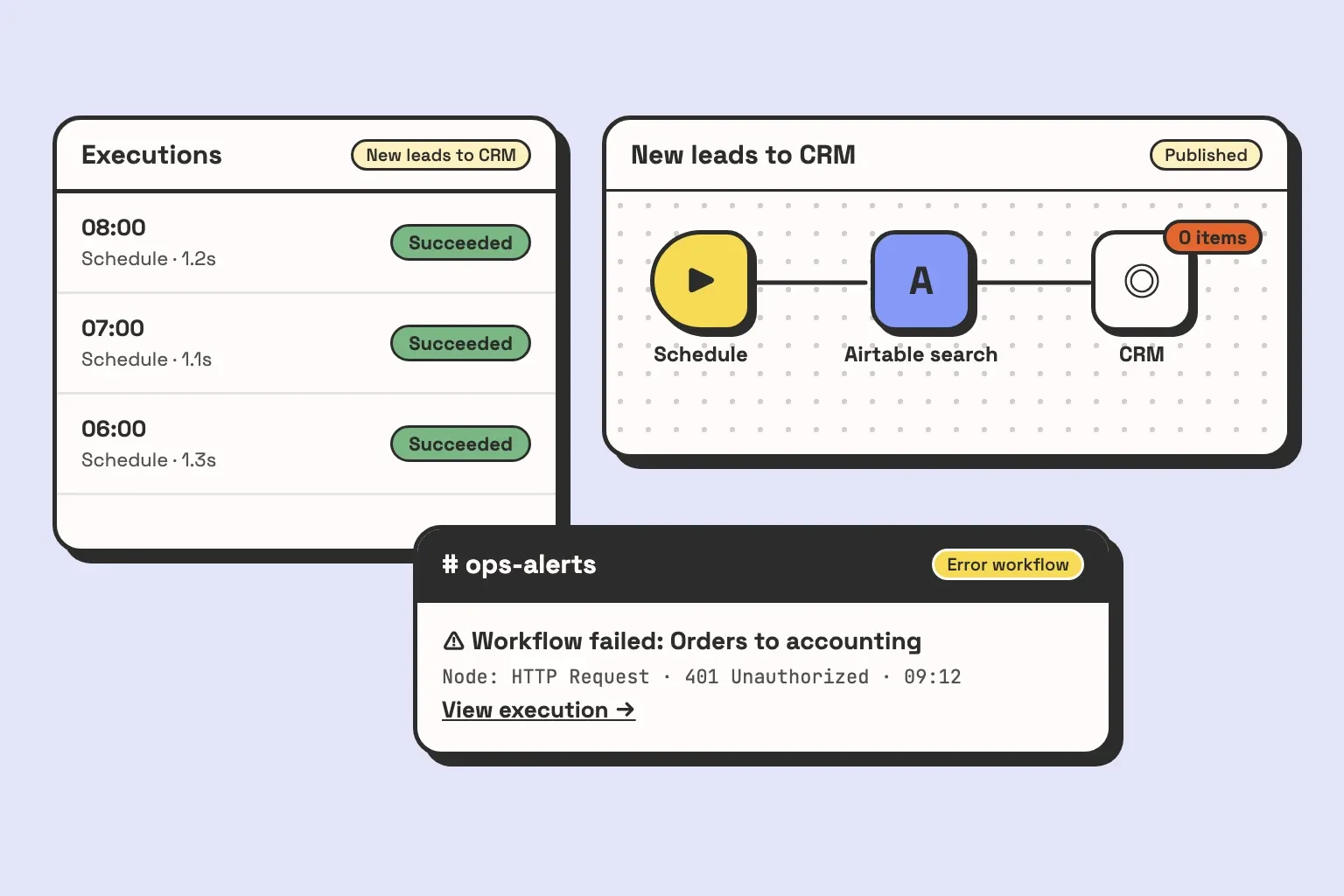
- Look for runs seconds apart on the same record. That is a loop. Runs on records nobody touched usually mean a formula or lookup field is changing underneath a When record updated trigger.
- Check for automations marked “Paused by Airtable”. Each one is a loop Airtable already caught.
Two things in the history trip people up. Test runs from the automation editor do not appear in it, so an automation has to fire for real before you can see anything. And Rerun on an old failed run replays it with the automation as it was at the time, so a rerun can fail even after you have fixed the cause. To check a fix, trigger a fresh run on a record instead.
If an automation is deleting old records on a schedule to stay under the record limit, it belongs on this list too. We covered that setup in automating record deletion in Airtable. And if you are still working out what automations should do in the first place, start with what Airtable automations are good for.