Managing inventory can feel like juggling flaming torches, with many moving parts making it hard to keep everything balanced. Airtable inventory management offers a flexible and intuitive way to organize your products, vendors, and orders—all in one place.
If you haven’t used Airtable much, you might be missing a powerful tool that can transform how you track inventory and streamline your workflows.
Why Use Airtable for Inventory Management?
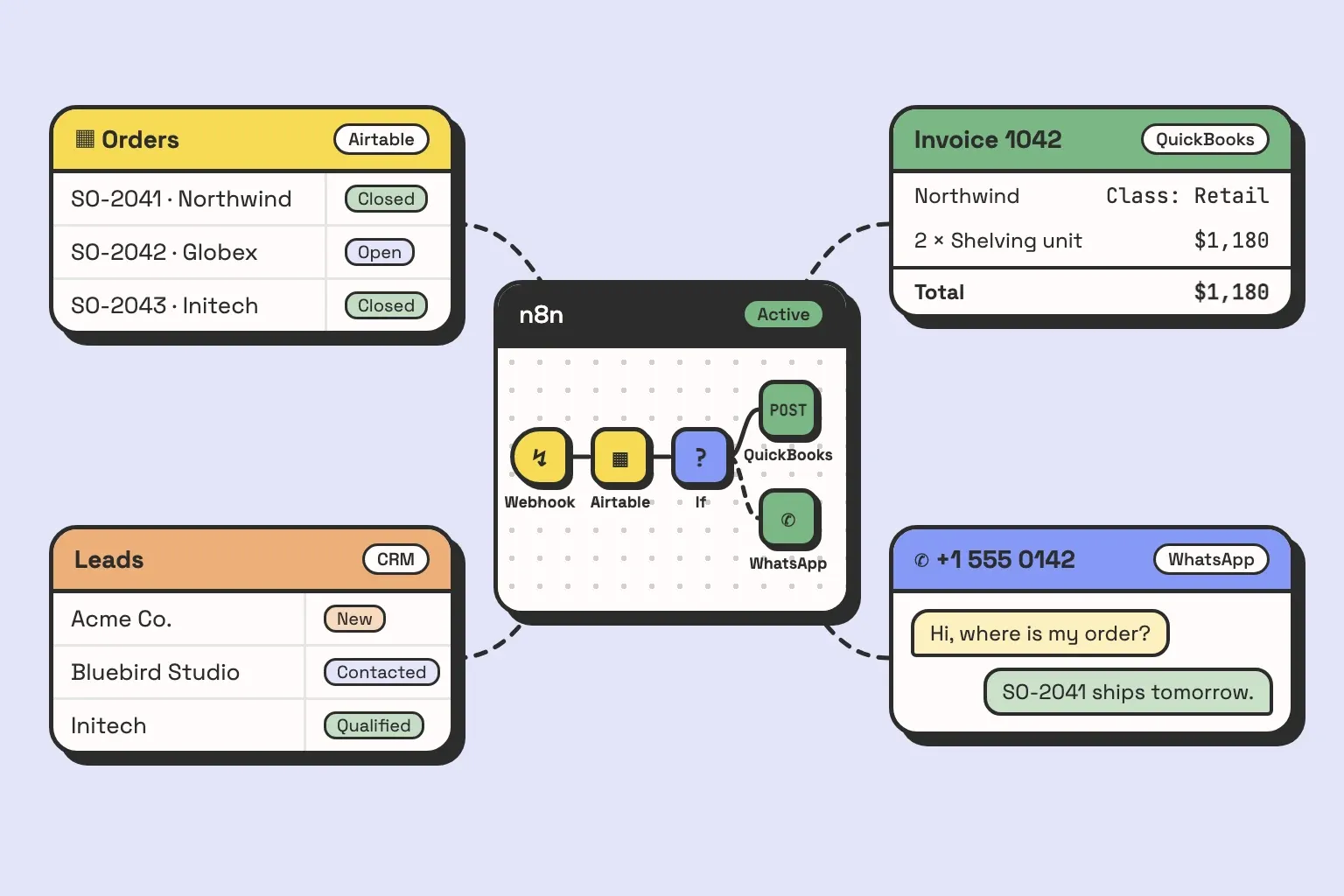
Airtable is more than just a spreadsheet. It combines the power of a database with user-friendly flexibility, enabling you to create relational tables that interact seamlessly. Plus, you can automate repetitive tasks and customize your inventory system exactly as you need, without requiring advanced coding skills.
Essential Airtable Tables for Effective Inventory Management
To set up a reliable Airtable inventory management system, start with these key tables:
1. Products Table
Track everything about your items here: names, SKUs, prices, and most importantly, current inventory counts. Using a rollup field, Airtable automatically sums quantities from your order line items, so you always know your available stock.
2. Contacts Table
Store information about your vendors and clients in one place. Linking this table with orders simplifies communication and enhances relationship management.
3. Orders Table
Organize purchase orders (stock coming in) and sales orders (stock going out) here. Monitor status, dates, and details of each order efficiently.
4. Order Line Items Table
Break down each order by individual products and quantities. Linking these line items to both the Products and Orders tables allows precise inventory movement tracking.
How Airtable Features Enhance Your Inventory Management
- Relational Database Functionality
Unlike flat lists, Airtable connects tables with linked records. Your Products, Orders, and Contacts stay synchronized and update in real time, saving hours of manual cross-checking. Learn more about what is a relational database and why it matters. - Rollup and Lookup Fields
Rollup fields summarize data across linked tables, like total stock sold or purchased. This ensures your inventory numbers stay accurate and current. Check out this Airtable rollup field quick guide for details. - Automation to Save Time
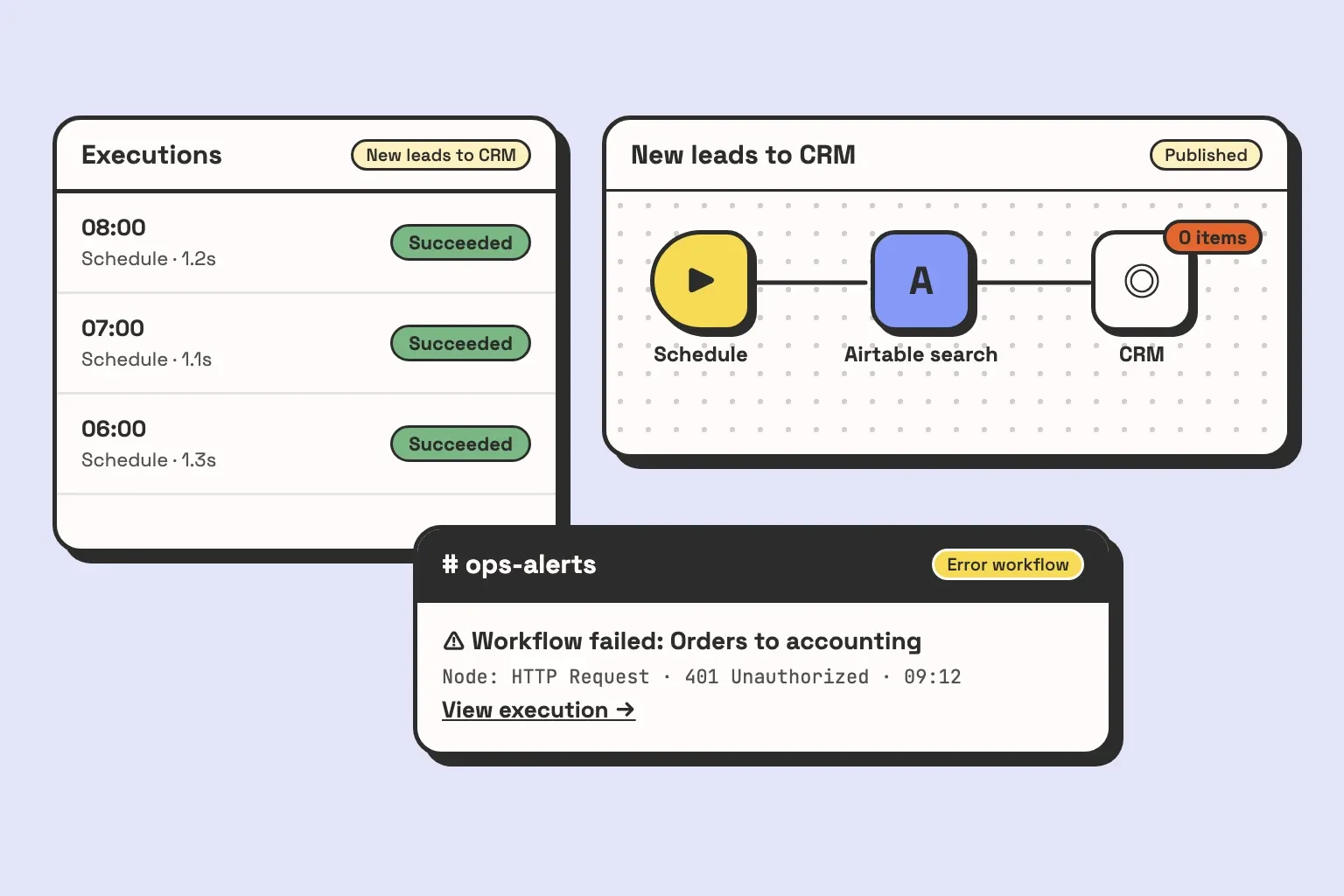
Automate tasks such as alerting your team when stock runs low or cleaning up old records. - Custom Views and Grouping
View your inventory by vendor, product category, or stock status. This simplifies filtering when preparing reports or making purchasing decisions. Explore more about Airtable’s grouping feature.
Pro Tips to Optimize Your Airtable Inventory Management
- Normalize Your Data
Prevent duplicates and inconsistencies by designing your tables carefully. This boosts data quality and operational efficiency. Need guidance? Review database design best practices. - Integrate with Other Tools
Link Airtable with apps like Asana or QuickBooks to streamline workflows. For example, the Asana Airtable integration improves task management during order fulfillment. - Utilize Low-Code Automation
No coding needed—Airtable’s automation lets anyone create powerful workflows. Interested? Discover what is low-code automation.
Conclusion: Elevate Your Inventory Management with Airtable
If managing inventory feels overwhelming, Airtable inventory management offers a fresh, customizable solution. With linked tables for Products, Contacts, Orders, and Order Line Items, you gain a clear, real-time view of your stock. Smart automation reduces manual work, letting you focus on growing your business instead of chasing data.
Ready to upgrade your inventory system? Explore Airtable’s full potential or discover more automation tips with our resources here.
Looking for more Airtable insights?
Take a look at these related articles:
- How Airtable Automations Boost Your Workflow Productivity
- Airtable Pricing: Compare Plans and Choose the Best One
Got questions or need help tailoring Airtable for your inventory?
Feel free to book a call now. We’re here to help you work smarter, not harder.